Weekly View

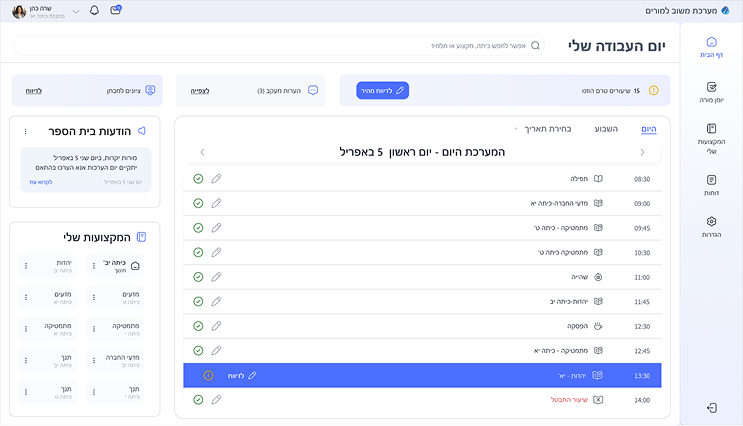
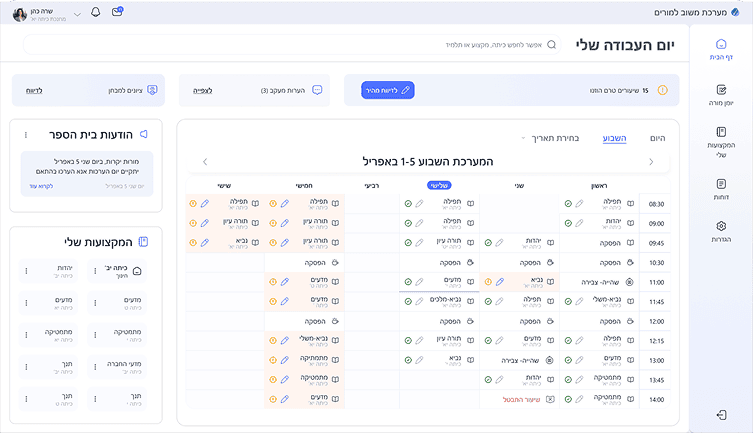
The weekly view supports a broader overview of the teacher’s schedule.
 It is especially useful for reviewing the past week and completing reports retroactively for lessons that were not reported in real time.

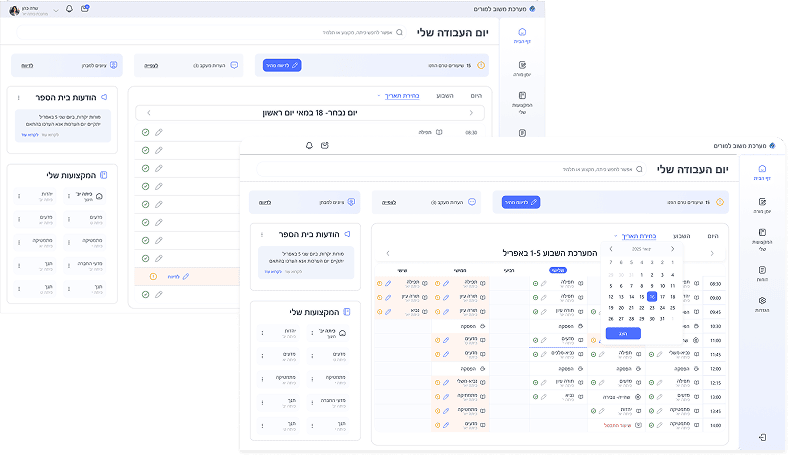
Date
Selection

For cases where a teacher knows a report is missing on a specific day, or wants to review a particular date, a calendar-based date picker is available.
This allows direct access to any date without unnecessary navigation.

Across all views, users can easily move forward or backward in time, making schedule management and reporting more flexible and reducing effort in navigating the system.

Rate reporting status

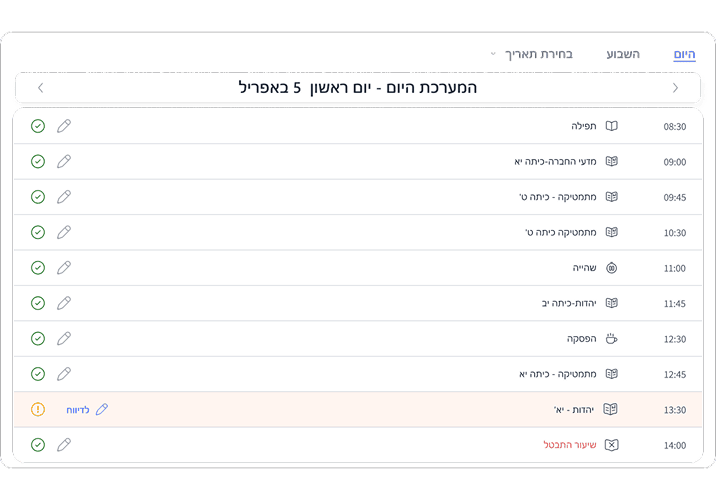
The schedule clearly displays the reporting status of each lesson and allows for quick editing directly from the list.

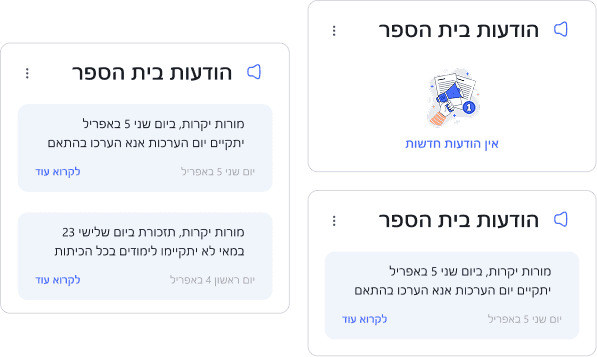
Dynamic Notifications Card

The notifications card was moved from a primary area to a secondary position on the home screen to reduce visual clutter.
 It expands only when multiple messages exist, reflecting the fact that notifications are not always actively used by schools.

Screens

02.

 Solution – Attendance Reporting Flow

A. Happy Flow

This Happy Flow focuses on real-time attendance reporting, performed during the lesson itself, as opposed to delayed or retrospective reporting.

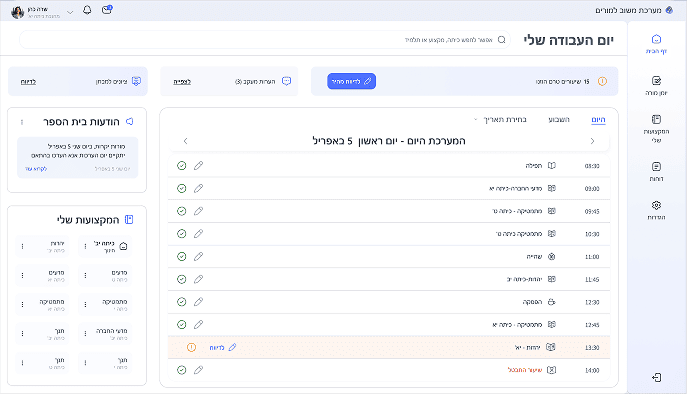
Highlighting unreported lessons from the home screen
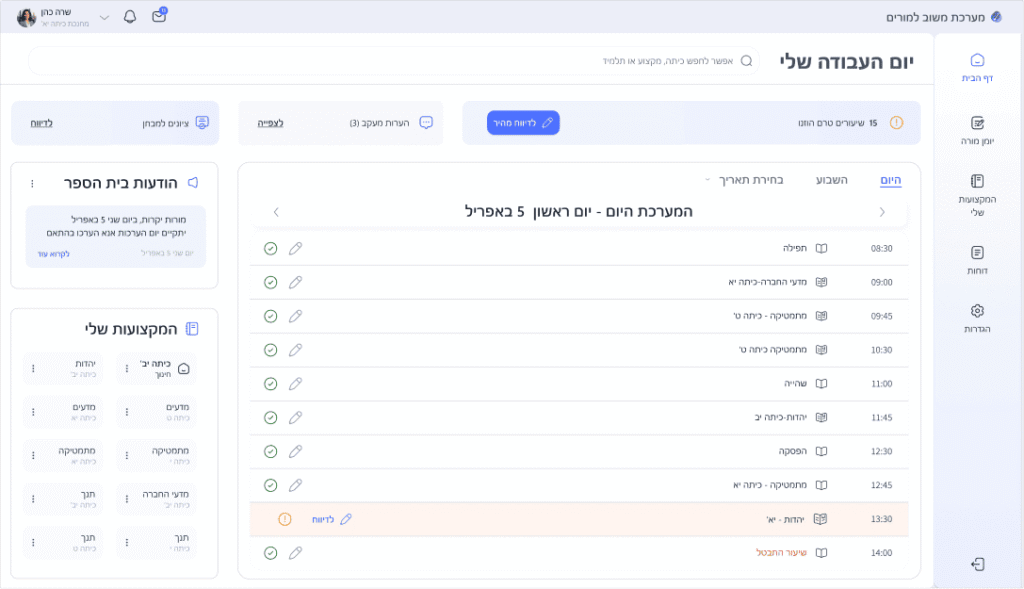
 Reported and unreported lessons are clearly distinguished using status icons.
 Unreported lessons are highlighted on hover, guiding the teacher to take immediate action directly from the home screen.

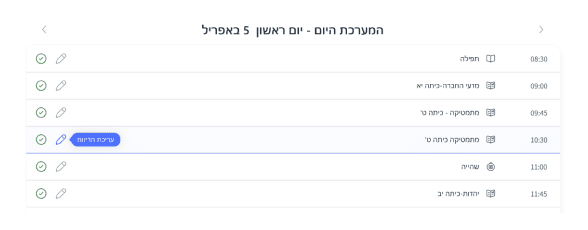
Inline editing on hover
 The edit icon appears on hover, enabling quick adjustments to incomplete attendance reports.

Unified Attendance Reporting Screen

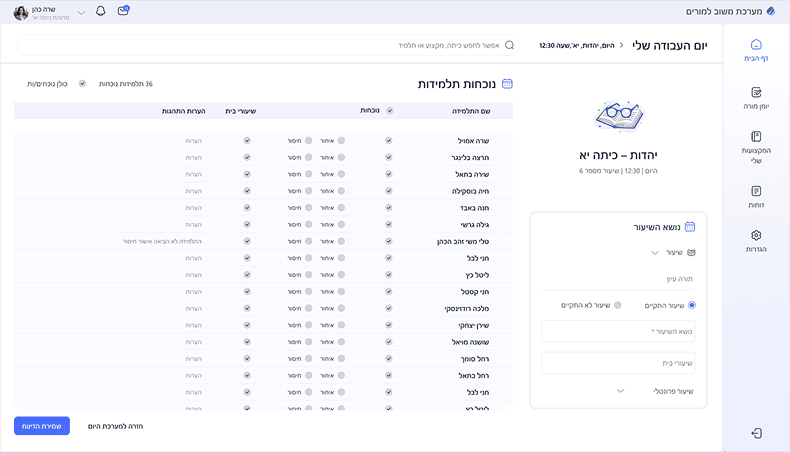
On selecting a lesson from the main screen, the teacher is taken to a single reporting screen that combines all required actions and information.

Student Attendance

A clear list of students with editable attendance statuses, enabling quick and direct reporting.

Lesson Details

Essential lesson information is displayed alongside the attendance list, keeping full context visible at all times.

Attendance Management

Attendance is handled directly on the class screen, with only essential information displayed.
Non-critical details such as class numbers and ID numbers have been removed, allowing the interface to focus on simple and clear attendance marking with a strong visual hierarchy.

Screens

02.

 Solution – Attendance Reporting Flow

B. Retrospective Reporting Flow

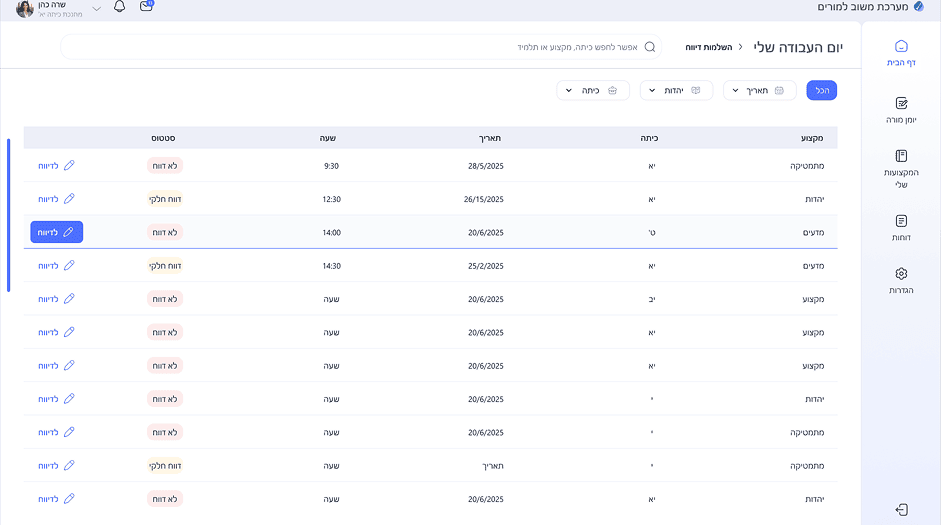
This flow supports reporting attendance after the lesson has already ended.
It is designed to complete missing reports from previous lessons in a row, allowing the teacher to review lesson details and update attendance efficiently without disrupting the ongoing daily workflow.

The retrospective reporting option is positioned as a clear status indicator at the top of the screen, with a subtle hover color change.
It subtly draws attention and encourages timely action, without being visually intrusive.
Completion
Screen –
Attendance
Overview

“The research revealed recurring gaps in
attendance reporting, highlighting
the need for a dedicated screen
to manage and complete reports.”

Screens

03.

Search Made Visible

From observations, I noticed that users often look for the search tool, as it is a powerful feature in the system. Therefore, I chose to display it on the home screen, making it easier and faster to access during daily use.

Micro Interactions And Feedback

Small UI moments that guide, reassure, and support
the user throughout the flow.